

- Order = a request to buy or sell
- Position = active market exposure after the order is filled
- a Market order usually executes immediately, so it often creates a position right away
- a Limit order may stay open for some time, so it will appear in Orders until the market reaches that price
Before you place an order
All orders are created from the Entry Finance trading panel on the right side of the terminal.
- Selected market, for example BTC-USDC. This shows which asset you are about to trade. Every order in the panel applies only to the currently selected market, so it is worth checking this first before you place the trade.
- Order type: Market or Limit. This controls how the order is sent to the market. Market means the order is executed immediately at the best available price. Limit means you choose the price and the order will wait until the market reaches it.
- Direction:
LongorShortLongmeans you are trading for price growth.Shortmeans you are trading for price decline. This choice determines how your PnL reacts after the order is filled. - Margin mode and leverage, for example
Cross 20xThis controls how much margin is used and how the position is managed. The margin mode decides whether the trade uses shared account collateral or only margin assigned to that specific position. Leverage increases exposure relative to the capital you commit, but it also increases liquidation risk. - Order size This is the amount you want to trade. In the current Entry panel, size is entered in
USDC. The larger the size, the more margin the trade uses and the more sensitive the position becomes to price moves. - Optional Take Profit and Stop Loss These are exit instructions you can set before opening the position. Take Profit closes the trade if price moves to your target. Stop Loss closes the trade if price moves against you and reaches your risk limit. Setting them in advance helps define the trade before it is live.
- Cross All open positions share the same available margin. This reduces the chance of one position being liquidated too quickly, but it also means more of your account balance can be exposed to the trade.
- Isolated Only the margin assigned to that position is at risk. This keeps the rest of the account more protected, but the position can be liquidated faster if it moves against you.
Place a market order
Use a Market order when you want to enter the trade immediately at the best available price.- Look at the trading panel on the right side of the terminal.
- Make sure the correct market is selected.
- In the order type dropdown, select Market.
- Choose
Longif you want to buy, orShortif you want to sell. - Check the margin mode and leverage shown at the top of the panel.
- If you want to change them, click the leverage area and select Cross or Isolated, then set the leverage amount and confirm.
- Enter the trade size in
USDC. - If you want to define exits in advance, fill in
TP Take ProfitandSL Stop Loss. - Review the margin bar and the estimated order details at the bottom of the panel.
- Click the main
LongorShortbutton to submit the order.
- the position appears in the Positions tab
- any attached exits can appear in the Orders tab
Place a limit order
Use a Limit order when you want to enter only at a specific price instead of taking the current market price.- Open the trading panel.
- Select the correct market.
- In the order type dropdown, choose Limit.
- Choose
LongorShort. - Set the margin mode and leverage if needed.
- Enter the order size.
- Enter the limit price where you want the order to execute.
- Optionally set Take Profit and Stop Loss.
- Review the order details.
- Click the main order button to place the order.
- the order appears in the Orders tab
- no position appears in the Positions tab until the order fills
Use take profit and stop loss when creating the order
Entry Finance lets you set Take Profit and Stop Loss directly in the order panel before sending the trade. This is useful because the exit plan can be attached at the moment of entry instead of being added later. In the current interface, the panel includes:- direct price fields
- quick buttons such as
25%,50%, and75%
Where to see your open positions
After an order is filled, go to the lower panel of the trading screen and open the Positions tab.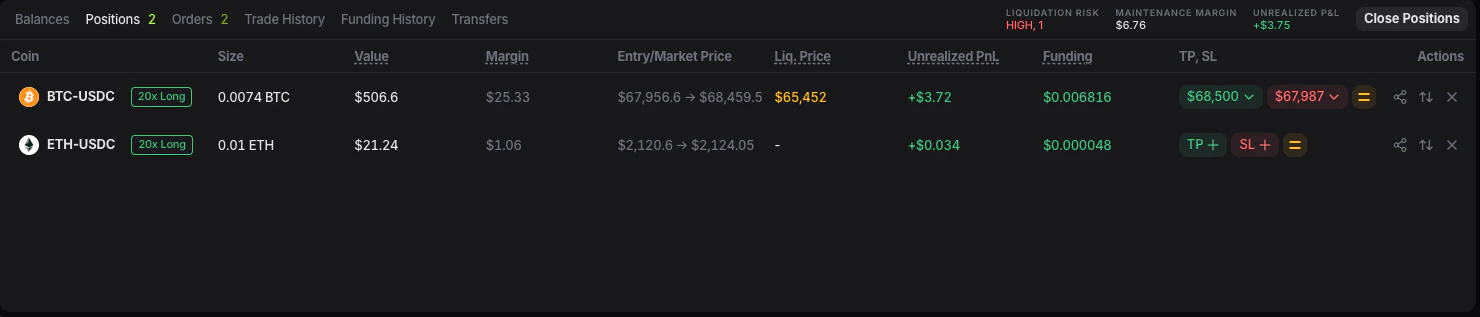
- coin
- size
- value
- margin
- entry price and market price
- liquidation price
- unrealized PnL
- funding
- TP / SL
Where to see your open orders
Go to the lower panel of the trading screen and open the Orders tab.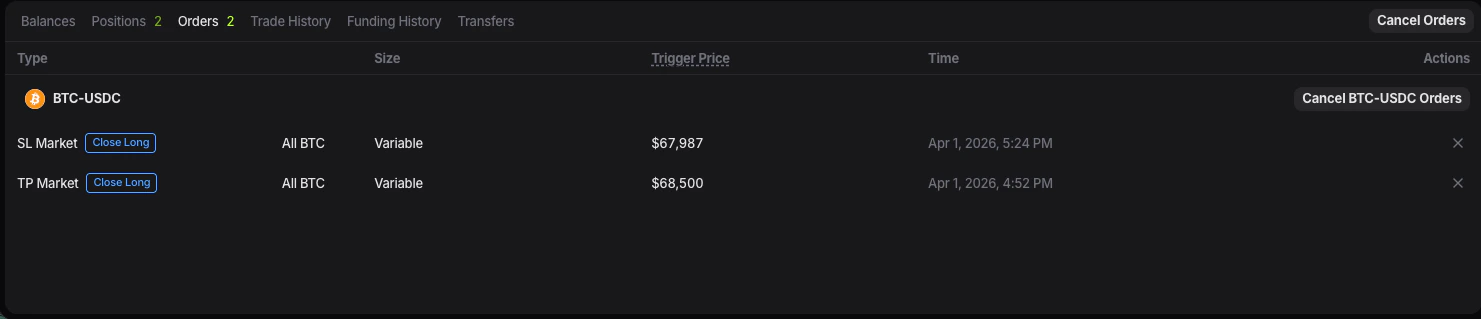
- limit entries that have not filled yet
- exit orders linked to a position
- orders you may want to edit or cancel later
What happens after the order fills
Once the market reaches your order and it is executed:- the open order disappears from the active orders list
- the trade becomes a position
- the position appears in Positions