

- Take Profit closes the trade when price reaches your target
- Stop Loss closes the trade when price moves against you to a defined level
- use Stop Loss to define the maximum damage you are willing to accept
- use Take Profit to define how you want to realize gains
- review these exits again after the position size changes
Add take profit or stop loss when opening a position
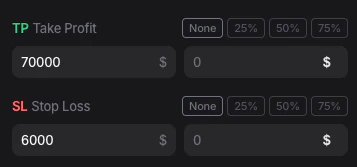
The fastest way to define exits is to set them directly in the trading panel before sending the order.- Open the trading panel on the right side of the terminal.
- Select the market you want to trade.
- Choose the order type and direction.
- Enter the position size.
- In
TP Take Profit, enter your target price or use one of the preset percentage buttons. - In
SL Stop Loss, enter your stop price or use one of the preset percentage buttons. - Review the full order setup.
- Submit the trade.
Add take profit to an open position
If the position is already open, you can add Take Profit from the Positions tab.- Go to the lower panel of the trading screen.
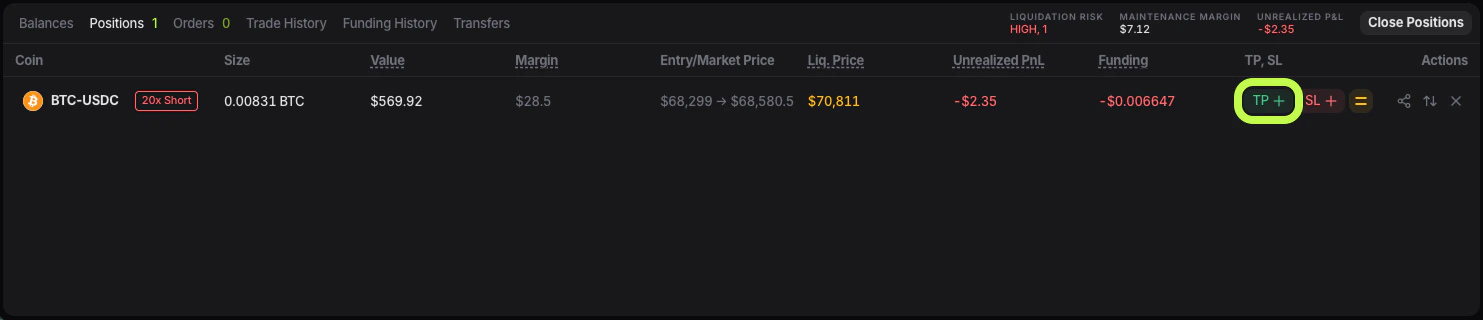
- Open the Positions tab.
- Find the position you want to manage.
- In the TP / SL area for that row, click the TP + control.
- The
Add TPwindow will open.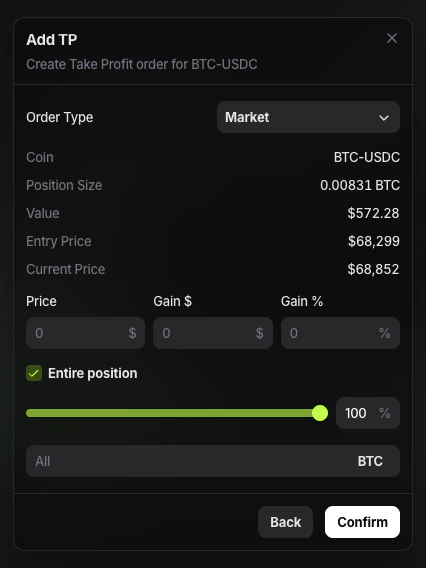
- Select the order type you want to use.
- Enter the target price, expected gain, or percentage.
- Choose whether the order should apply to the entire position or only part of it.
- Confirm the order.
- Order Type: defines how the take profit will execute. Market aims to close the position at the best available price once triggered. Limit places the exit at a specific limit price.
- Coin: the market for the current position, for example BTC-USDC.
- Position size: the size of the open position that the take profit can act on.
- Value: the current notional value of that position.
- Entry price: the price at which the position was opened.
- Current price: the latest market price at the moment you open the TP window.
- Price: the target price where the take profit should trigger or execute.
- Gain $: the estimated profit in dollar terms if the take profit is reached.
- Gain %: the estimated profit in percentage terms if the take profit is reached.
- Entire position: applies the take profit to the full position size. If you disable it, you can set the exit for only part of the position.
Multi-target take profit and scaling out
Not every trader exits the full position at one target. Many traders prefer to scale out:- close one part of the position at the first target
- leave another part open for a larger move
- keep the stop-loss active on the remaining size
- secure some profit early
- reduce emotional pressure after the trade starts working
- keep exposure for a second or third target
Add stop loss to an open position
If you want to define the maximum loss after the trade is already live, add Stop Loss from the same Positions row.- Open the Positions tab.
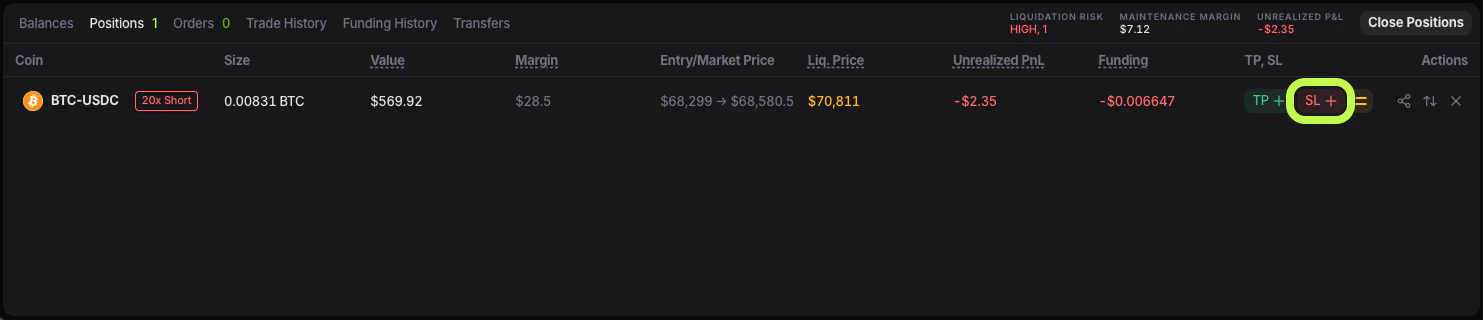
- Find the position you want to protect.
- Click the SL control in the TP / SL area.
- The
Add SLwindow will open.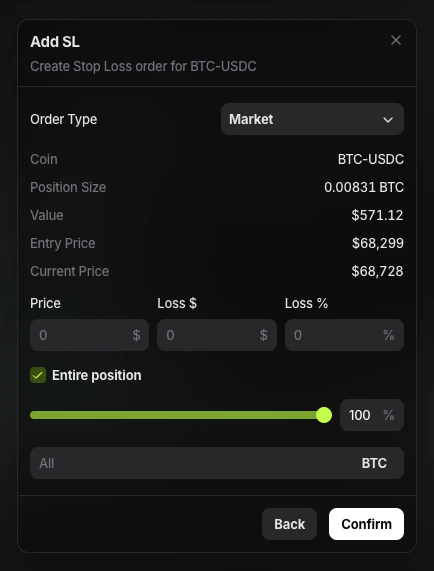
- Select the order type.
- Enter the stop price, loss amount, or percentage.
- Choose whether the stop should apply to the entire position or only part of it.
- Confirm the order.
Reduce-only behavior for exits
Exit orders should reduce exposure, not increase it. That is why traders usually think about Take Profit, Stop Loss, and manual exit orders together with Reduce-only orders. The trader-level rule is simple:- if the order is meant only to close or reduce the position, it should behave like an exit
- it should not accidentally add size or flip the position
- you are scaling out in parts
- you already have several active exit instructions
- the remaining position size changes after a partial fill or partial close
What Entire position means
Both the Add TP and Add SL windows include an Entire position option. If it is enabled, the exit order is created for the full size of the position. If it is disabled, you can define only part of the position to be closed. This is useful when you want to scale out gradually instead of exiting all at once. This also means the exit structure can become more complex over time. One trade can move from:- one stop and one full-position take profit
- one stop on the remaining size
- one or more partial take profits already executed or still waiting
Market or limit for TP and SL
When adding Take Profit or Stop Loss, the order window lets you choose the order type. In practice:- Market means the exit will trigger and execute at the best available market price
- Limit means the exit uses a specific limit price
Update or replace TP and SL
If you already have exit orders attached to the position, you can update them from the Positions tab.- Open Positions.
- Find the position you want to change.
- Use the TP / SL controls for that row.
- Enter the new values.
- Confirm the update.
- after any edit, re-check Positions
- then re-check Orders
- confirm that only the intended exit orders remain active
What happens after a partial close
If part of the position is closed, the exit setup should be reviewed again. That matters because:- the remaining position size is smaller
- a full-size exit may no longer match the open exposure
- the trade may now need a different stop level or profit-taking plan
- the new position size in Positions
- whether the active TP / SL values still match that remaining size
- whether old exit orders were reduced, replaced, or should be manually adjusted
What happens when breakeven is used
Breakeven is a special case of stop management. When you use Breakeven position, Entry Finance replaces the existing stop-loss structure for that position with a new stop at the breakeven level. So before confirming breakeven, treat it as a stop replacement event, not as an extra stop added on top.Where to check your active TP and SL orders
After creating or updating exits, use both of these areas:- Positions to see the current TP / SL values linked to the position
- Orders to see active exit orders waiting in the market