

Edit or cancel an open order
Use the Orders tab when your order has been submitted but has not fully filled yet.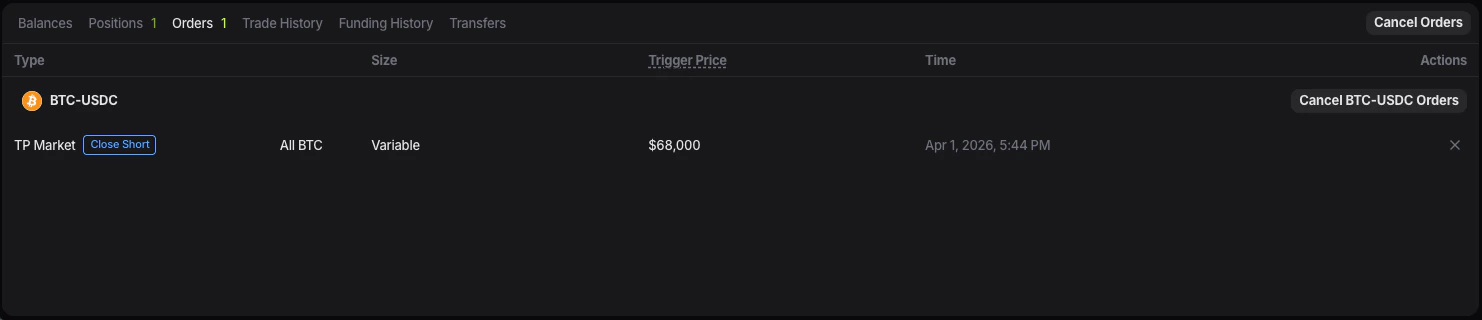
- limit orders that are waiting at a chosen price
- exit orders linked to a position
- orders you no longer want to keep active
How to cancel an order
- Open the Orders tab.
- Locate the order you want to remove.
- Click the cancel control next to that order.
- Confirm the action if the terminal asks for confirmation.
How to edit an order
In Entry Finance, related orders such as Take Profit and Stop Loss are edited from the Positions tab.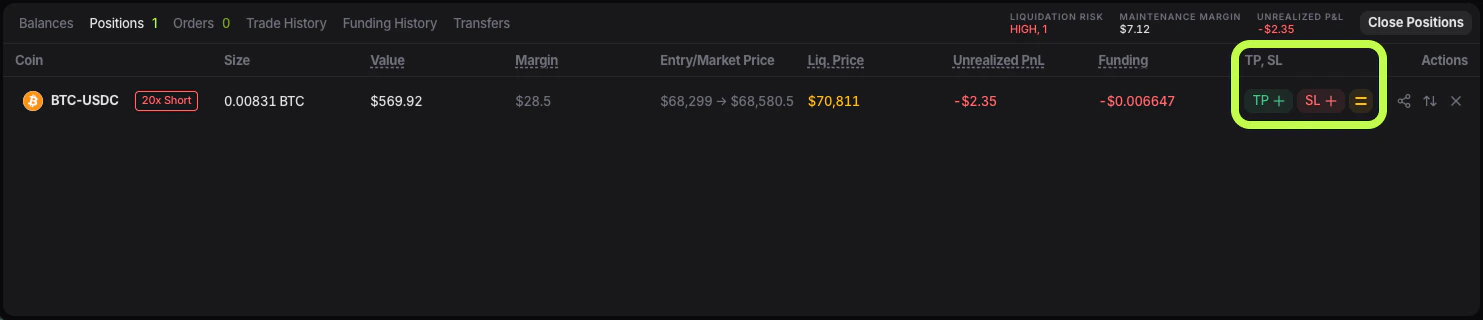
- use Orders to monitor or cancel active orders
- use Positions to update the orders attached to a live position
- Open the Positions tab.
- Find the position linked to the order you want to change.
- Use the TP / SL controls in that position row.
- Enter the new values or choose new percentage presets.
- Confirm the update.
Canceling an order does not close a position
This is one of the most common points of confusion. If you cancel an open order, you are canceling only the instruction that has not filled yet. You are not closing a trade that is already live. If the trade has already been executed and is visible in Positions, you need to manage the position itself.Manage an open position
Once an order is filled, it becomes a position. From that point, the most common actions are:- reduce the position
- close the position
- update Take Profit
- update Stop Loss
How to find your open positions
- Go to the lower panel of the trading screen.
- Open the Positions tab.
- Find the position you want to manage.
How to close a position
If you want to fully exit a live trade:- Open the Positions tab.
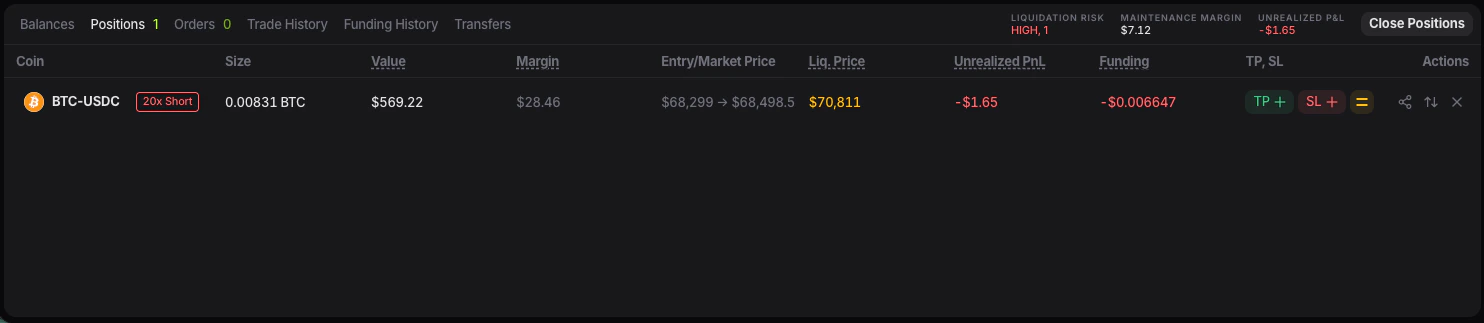
- Find the position you want to close.
- Use the close action available for that position.
- Confirm the close if needed.
How to reduce a position
If you do not want to fully close the trade, you can reduce it instead. This lowers your exposure without removing the position completely. The exact action depends on the controls shown for that position, but the goal is the same: close part of the size while keeping the rest open. After a reduction:- the position size becomes smaller
- required margin may decrease
- some balance can become available again
Where to check whether the action worked
After canceling an order, check the Orders tab.- if the order was canceled, it should no longer appear as active
- if the position was closed, it should disappear
- if the position was reduced, the size should be smaller
- if TP / SL was updated, the new levels should appear in the position row or on the chart