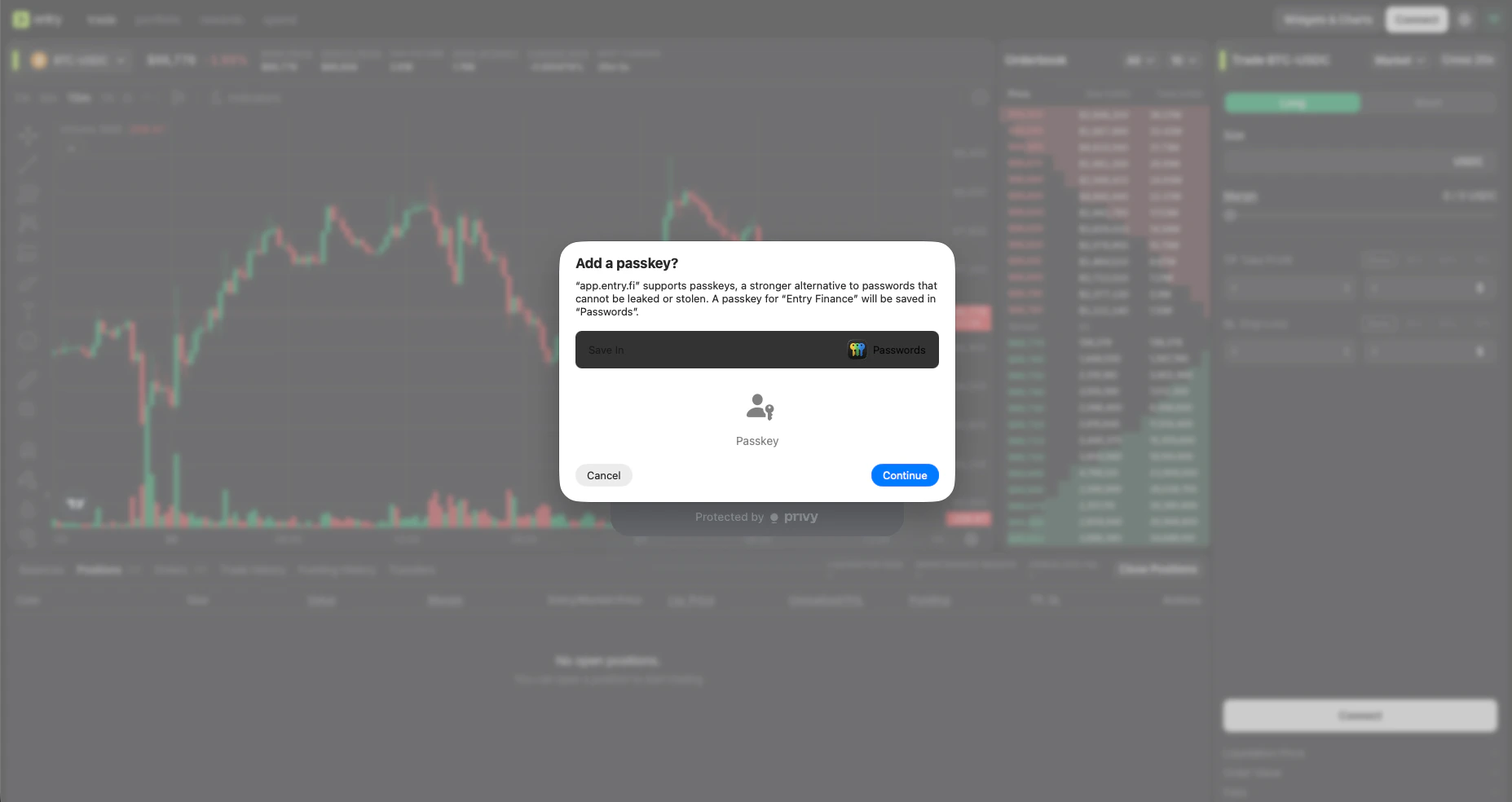
You only need to complete the connection flow once for your session. After that, you can fund your account and start using the terminal.
Available connection methods
Entry Finance currently shows these connection options:- Email — best if you want the simplest option. No wallet required.
- Wallet — choose this if you already use crypto wallets (e.g. MetaMask or Coinbase Wallet).
- Passkey — a fast and secure option. You can create a new passkey or use an existing one saved on your device.
Connect with email
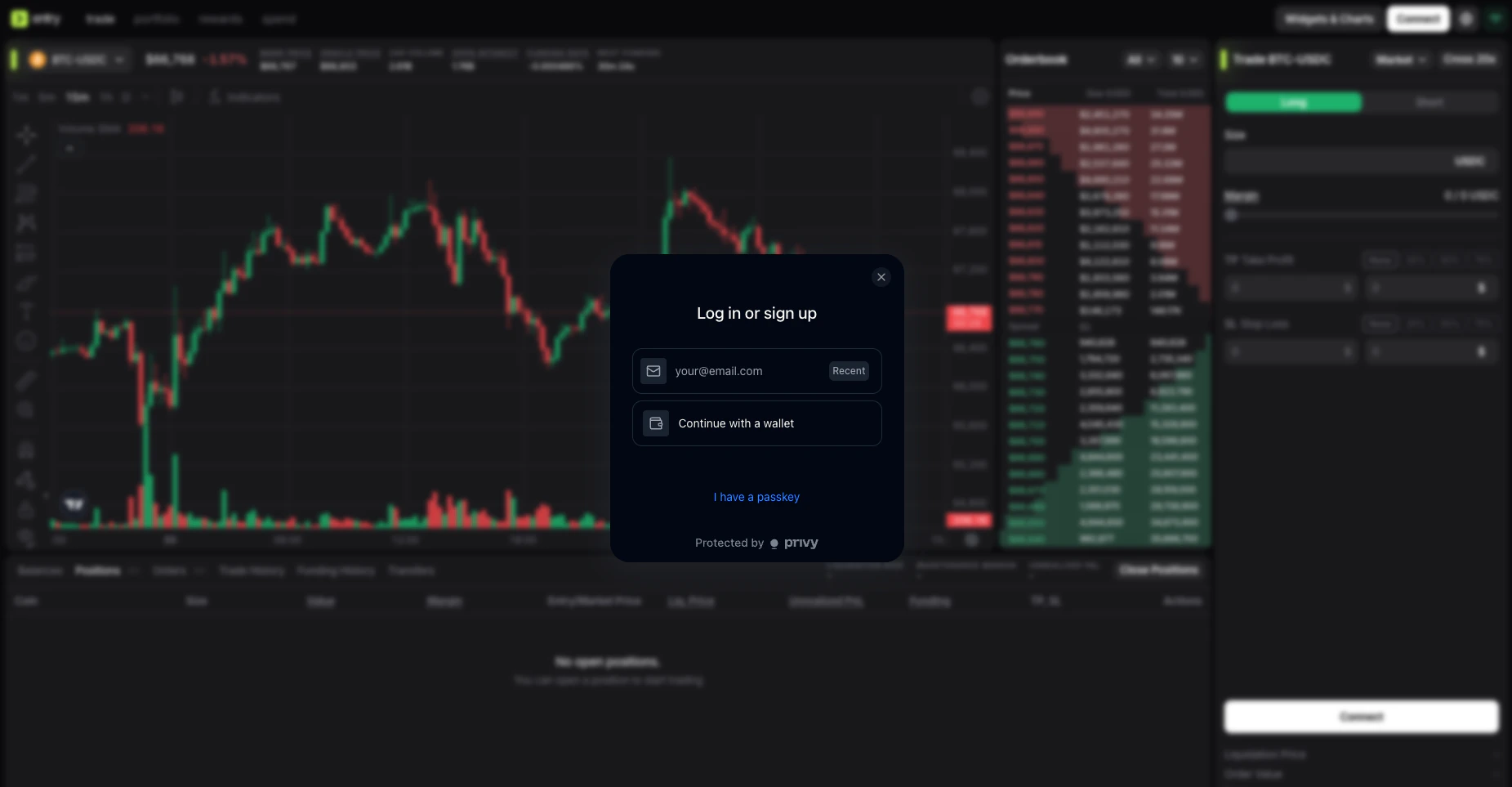
This is the easiest method for beginners because it does not require selecting a wallet first.- Click the Connect button in the top right corner of the terminal.
- Enter your email address and click Submit.
- Open the verification email sent to your inbox and copy the login code.
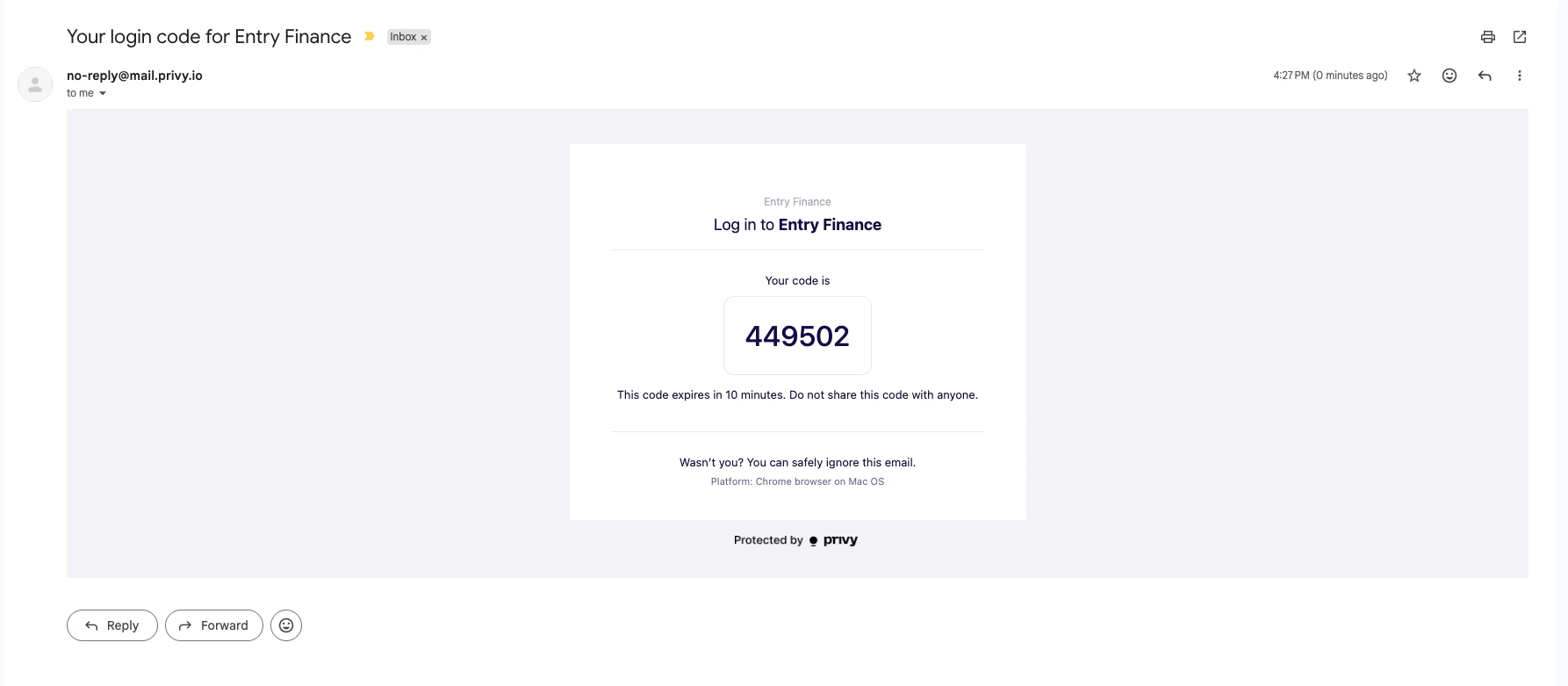
- Return to Entry Finance and complete the verification step. The terminal will create an account and display it in the top right corner.
Connect with a wallet
This method is useful if you already use a crypto wallet and want to sign in that way.- Click the Connect button in the top right corner of the terminal.
- Click Continue with a wallet.
- Select your wallet from the list.
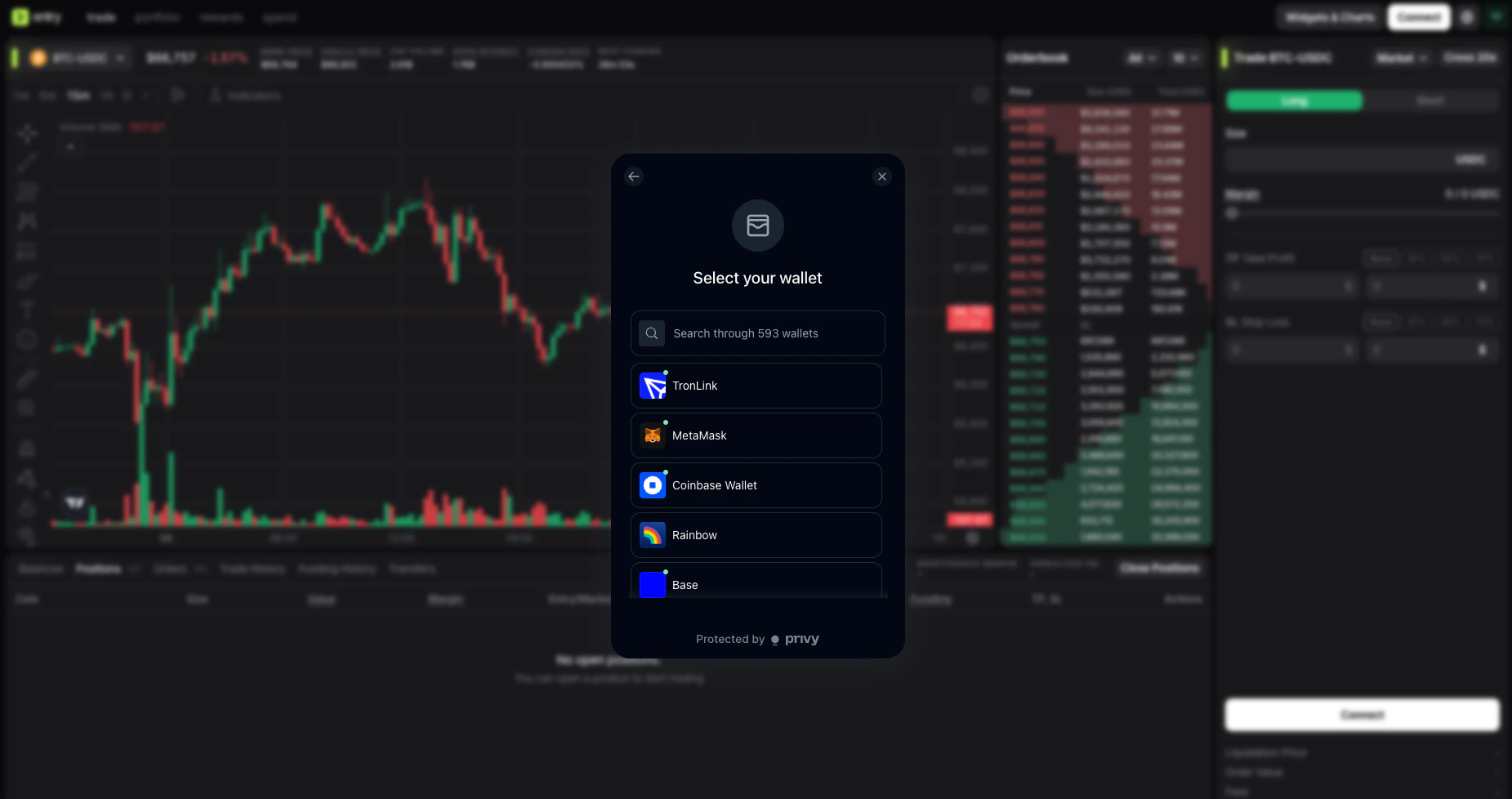
- The following flow may vary depending on the wallet you choose. If you are using a desktop wallet or connecting from a mobile device, you will be redirected directly to the wallet to confirm the connection. In other cases, a QR code will be displayed, which you will need to scan using your wallet app.
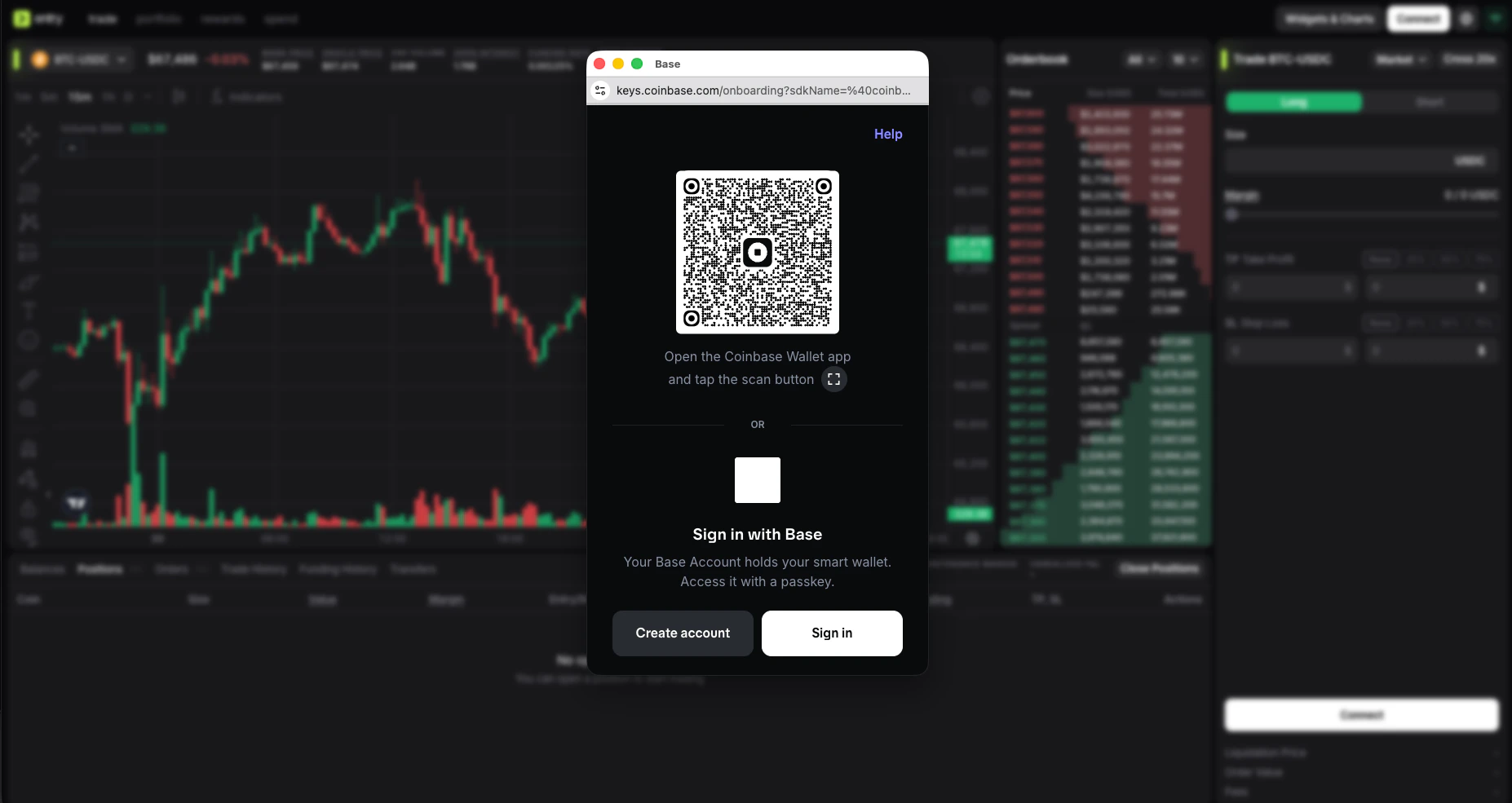
- Approve the connection request in your wallet.
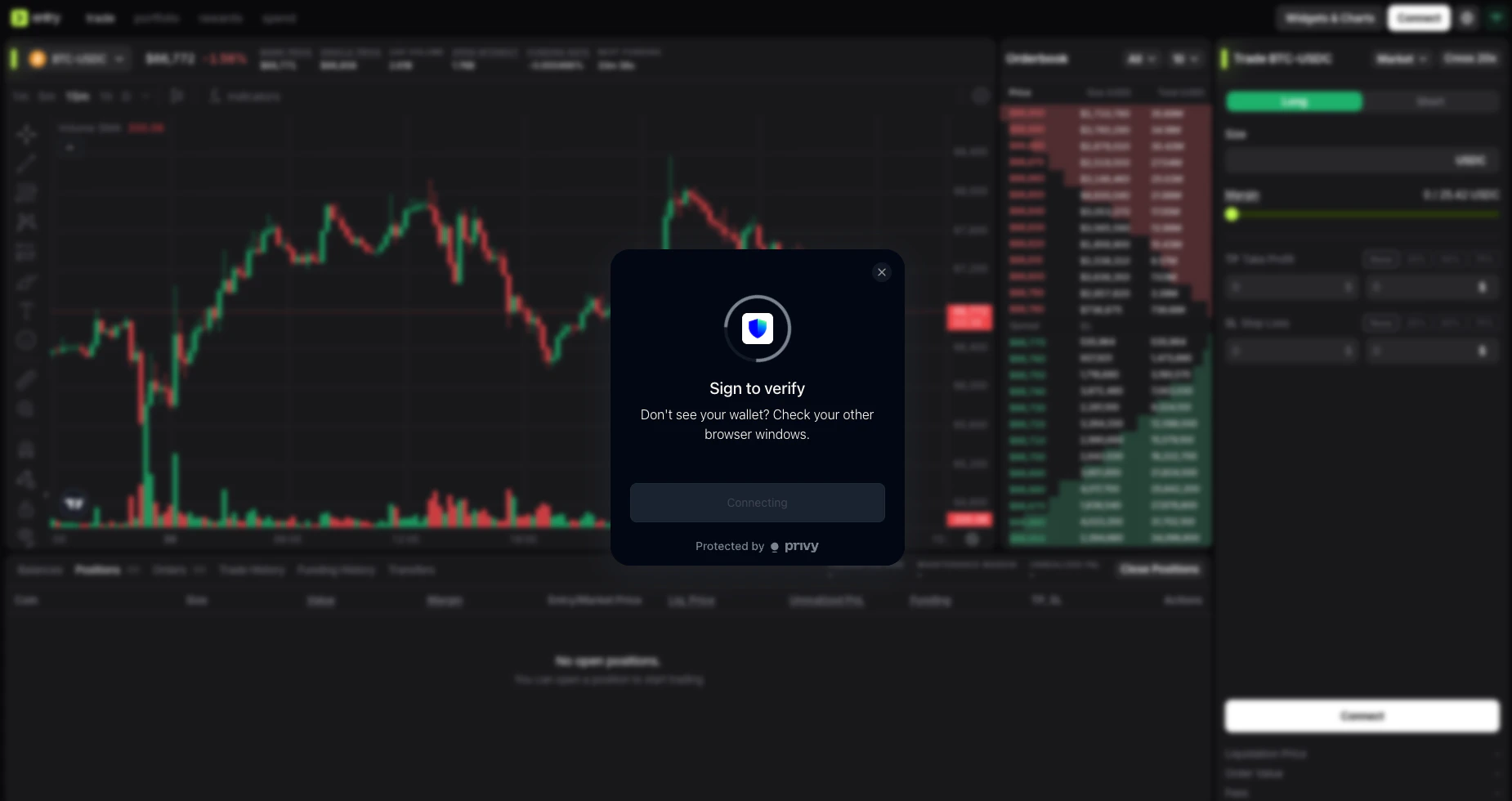
- Sign the verification message if the wallet asks you to do so.
Connect with a passkey
You can create a new passkey or use an existing one saved on your device.- Click the Connect button in the top right corner of the terminal.
- Click I have a passkey.
- Select your saved passkey when your device prompts you or create a new one.