> ## Documentation Index
> Fetch the complete documentation index at: https://docs.entry.fi/llms.txt
> Use this file to discover all available pages before exploring further.
# Spot and perpetuals balances
Entry Finance keeps your funds in two separate balances: **Spot** and **Perpetuals**. This split is important because the terminal uses them differently.
* **Spot** is for spot holdings
* **Perpetuals** is for perpetual trading and margin
If your funds are in the wrong balance, the terminal may show less buying power than you expected or you may not be able to use the funds for the trade you want to make.
## Where to check your balances
Open the **Portfolio** tab in the top navigation bar.
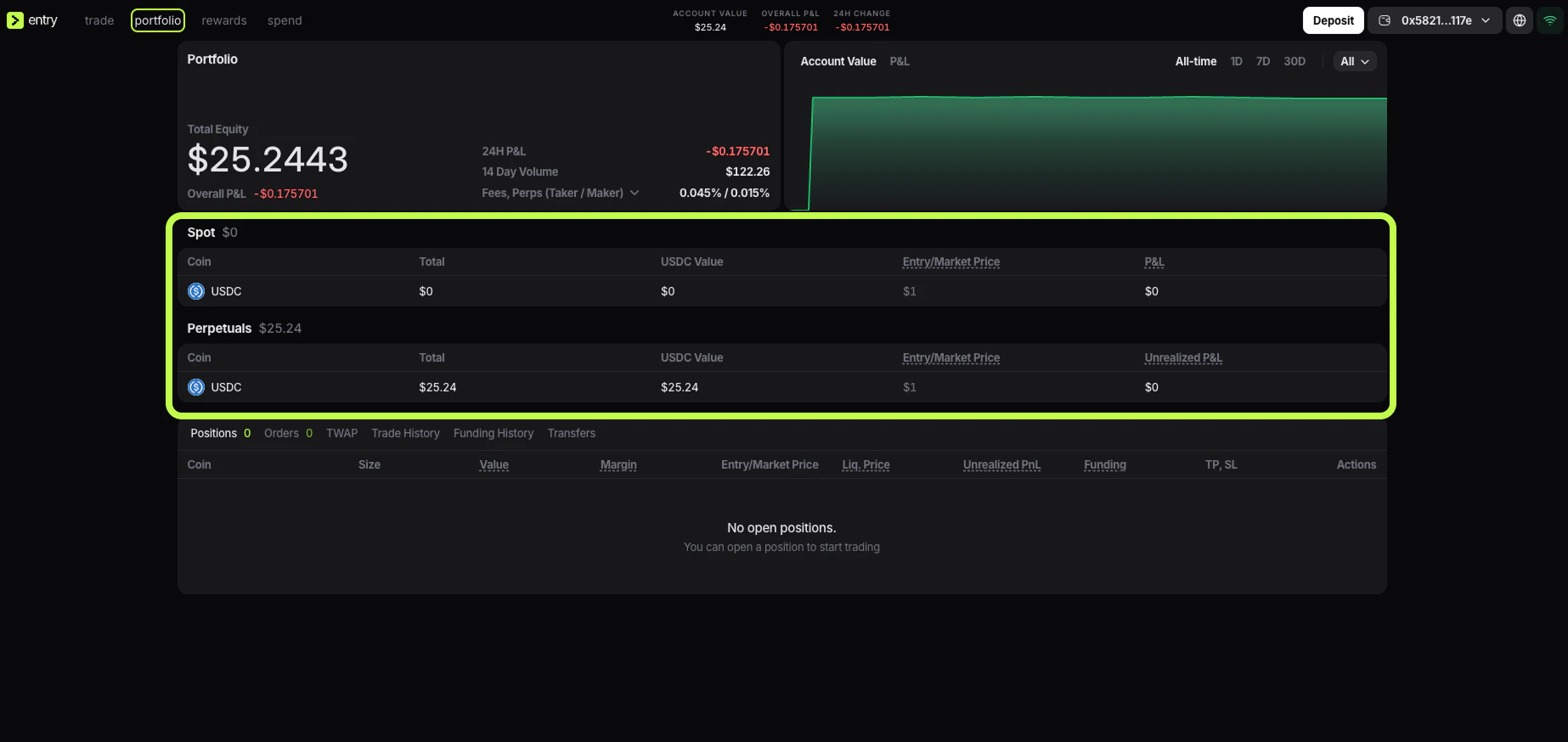 There you will see two sections:
* **Spot**
* **Perpetuals**
Each section shows its own balance table with fields such as:
* `Coin`
* `Total`
* `USDC Value`
* **Entry/Market Price**
* `P&L` or `Unrealized P&L`
This is the quickest way to see where your USDC is currently assigned.
## Spot balance
The **Spot** balance is the part of your account used for spot assets.
If funds are in **Spot**, they are not sitting in your perpetual margin balance. They are allocated to the spot side of the account instead.
When you open **Portfolio**, the **Spot** section tells you:
* which spot asset you hold
* how much you hold
* what that balance is worth in USDC
* whether there is any P\&L on that balance
If **Spot** shows `0`, no funds are currently allocated there.
## Perpetuals balance
The **Perpetuals** balance is the part of your account used by the trading terminal for perpetual positions.
This is the balance that matters when you:
* open a long or short position
* use leverage
* post margin for an open trade
* pay or receive [funding](/trading-basics/funding-rate-and-payments)
If you want to trade perps, this is the balance to watch.
If you plan to hold positions overnight or across several funding windows, also review [Funding rate and payments](/trading-basics/funding-rate-and-payments).
In your current Entry Finance screenshots, the funded USDC sits in **Perpetuals** while **Spot** is `0`. That means the account is ready for perpetual trading.
## Why the balances are separate
The separation makes it easier to control how capital is used.
Instead of treating the whole account like one undivided wallet, Entry Finance shows whether funds are currently assigned to spot or to perpetual trading. This makes it easier to:
* see how much capital is available for perps
* move idle funds out of the perp margin balance
* check where deposited USDC actually landed
## Which balance should you use
Use **Spot** when you want the funds on the spot side of the account.
Use **Perpetuals** when you want to trade perpetual contracts.
If the trading screen is not showing the buying power you expected, check [Spot and perpetuals balances](/using-the-terminal/spot-and-perpetuals-balances) first. In many cases the issue is simply that the funds are in **Spot** instead of **Perpetuals**, or the other way around.
## Where deposits arrive
In the current Entry Finance flow, deposits are credited to **USDC (Perps)**.
That means after a deposit, the funds appear in **Perpetuals** by default. If you want to use the funds elsewhere, you need to transfer them internally.
## Transfer between Spot and Perpetuals
1. Click the account menu in the top-right corner and open **Transfer**.
There you will see two sections:
* **Spot**
* **Perpetuals**
Each section shows its own balance table with fields such as:
* `Coin`
* `Total`
* `USDC Value`
* **Entry/Market Price**
* `P&L` or `Unrealized P&L`
This is the quickest way to see where your USDC is currently assigned.
## Spot balance
The **Spot** balance is the part of your account used for spot assets.
If funds are in **Spot**, they are not sitting in your perpetual margin balance. They are allocated to the spot side of the account instead.
When you open **Portfolio**, the **Spot** section tells you:
* which spot asset you hold
* how much you hold
* what that balance is worth in USDC
* whether there is any P\&L on that balance
If **Spot** shows `0`, no funds are currently allocated there.
## Perpetuals balance
The **Perpetuals** balance is the part of your account used by the trading terminal for perpetual positions.
This is the balance that matters when you:
* open a long or short position
* use leverage
* post margin for an open trade
* pay or receive [funding](/trading-basics/funding-rate-and-payments)
If you want to trade perps, this is the balance to watch.
If you plan to hold positions overnight or across several funding windows, also review [Funding rate and payments](/trading-basics/funding-rate-and-payments).
In your current Entry Finance screenshots, the funded USDC sits in **Perpetuals** while **Spot** is `0`. That means the account is ready for perpetual trading.
## Why the balances are separate
The separation makes it easier to control how capital is used.
Instead of treating the whole account like one undivided wallet, Entry Finance shows whether funds are currently assigned to spot or to perpetual trading. This makes it easier to:
* see how much capital is available for perps
* move idle funds out of the perp margin balance
* check where deposited USDC actually landed
## Which balance should you use
Use **Spot** when you want the funds on the spot side of the account.
Use **Perpetuals** when you want to trade perpetual contracts.
If the trading screen is not showing the buying power you expected, check [Spot and perpetuals balances](/using-the-terminal/spot-and-perpetuals-balances) first. In many cases the issue is simply that the funds are in **Spot** instead of **Perpetuals**, or the other way around.
## Where deposits arrive
In the current Entry Finance flow, deposits are credited to **USDC (Perps)**.
That means after a deposit, the funds appear in **Perpetuals** by default. If you want to use the funds elsewhere, you need to transfer them internally.
## Transfer between Spot and Perpetuals
1. Click the account menu in the top-right corner and open **Transfer**.
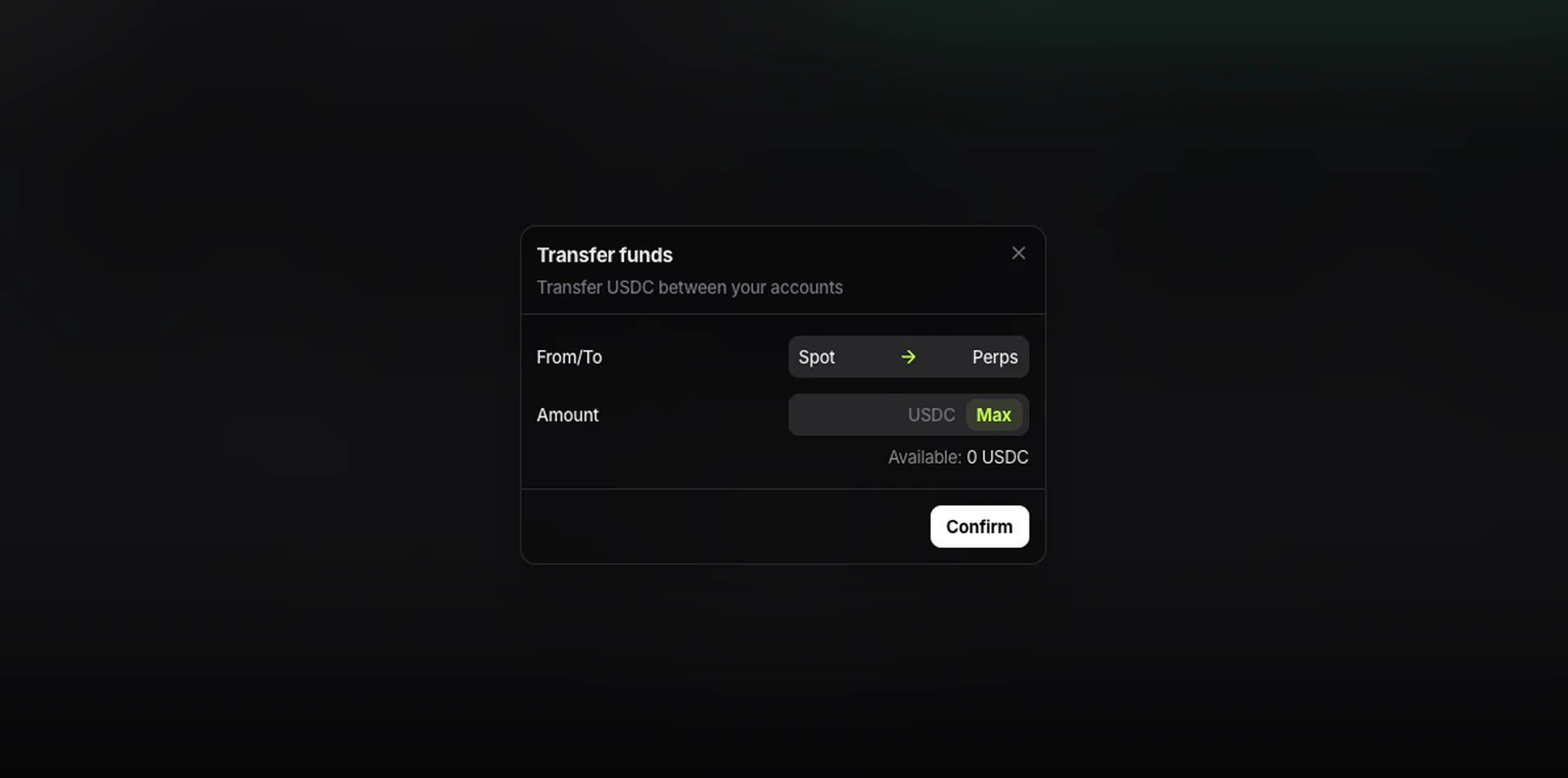 2. Select `Spot -> Perps` or `Perps -> Spot`.
3. Enter the amount of `USDC`.
4. Click `Max` if you want to move the full available amount.
5. Check the **Available** amount.
6. Click `Confirm`.
## What to check before transferring
Before confirming the transfer, make sure:
* you selected the correct direction
* the source balance has enough **Available** USDC
* the funds are not needed as margin for open perpetual positions
If part of your perp balance is being used by open positions or active orders, you may not be able to move the full amount.
## Why **Available** matters
`Account Value` shows the value of the account as a whole. It does not always mean the full amount can be moved right away.
For transfers, the number that matters is **Available** inside the transfer window. That is the amount currently free to move from the selected balance.
## How to confirm the transfer worked
After the transfer, go back to **Portfolio**.
Check both sections:
* the source balance should be lower
* the destination balance should be higher
This is the fastest way to confirm that the funds are now in the balance you want to use.
2. Select `Spot -> Perps` or `Perps -> Spot`.
3. Enter the amount of `USDC`.
4. Click `Max` if you want to move the full available amount.
5. Check the **Available** amount.
6. Click `Confirm`.
## What to check before transferring
Before confirming the transfer, make sure:
* you selected the correct direction
* the source balance has enough **Available** USDC
* the funds are not needed as margin for open perpetual positions
If part of your perp balance is being used by open positions or active orders, you may not be able to move the full amount.
## Why **Available** matters
`Account Value` shows the value of the account as a whole. It does not always mean the full amount can be moved right away.
For transfers, the number that matters is **Available** inside the transfer window. That is the amount currently free to move from the selected balance.
## How to confirm the transfer worked
After the transfer, go back to **Portfolio**.
Check both sections:
* the source balance should be lower
* the destination balance should be higher
This is the fastest way to confirm that the funds are now in the balance you want to use.