> ## Documentation Index
> Fetch the complete documentation index at: https://docs.entry.fi/llms.txt
> Use this file to discover all available pages before exploring further.
# Open positions and orders
In Entry Finance, an order and a position are not the same thing. An **order** is an instruction you send to the market. A **position** appears only after that instruction is executed. One position can also have more than one related order attached to it, for example a **Take Profit** order and a **Stop Loss** order. This distinction is important because a user may place an order and then wonder why nothing shows in **Positions** yet. If the order has not filled, it will remain in **Orders**. Once it is executed, it becomes a live position.
* **Order** = a request to buy or sell
* **Position** = active market exposure after the order is filled
For example:
* a **Market** order usually executes immediately, so it often creates a position right away
* a **Limit** order may stay open for some time, so it will appear in **Orders** until the market reaches that price
## Before you place an order
All orders are created from the Entry Finance trading panel on the right side of the terminal.
 Before submitting an order, check these fields:
* **Selected market**, for example **BTC-USDC**. This shows which asset you are about to trade. Every order in the panel applies only to the currently selected market, so it is worth checking this first before you place the trade.
* **Order type**: **Market** or **Limit**. This controls how the order is sent to the market. **Market** means the order is executed immediately at the best available price. **Limit** means you choose the price and the order will wait until the market reaches it.
* **Direction**: `Long` or `Short` `Long` means you are trading for price growth. `Short` means you are trading for price decline. This choice determines how your PnL reacts after the order is filled.
* **Margin mode and leverage**, for example `Cross 20x` This controls how much margin is used and how the position is managed. The margin mode decides whether the trade uses shared account collateral or only margin assigned to that specific position. Leverage increases exposure relative to the capital you commit, but it also increases [liquidation risk](/trading-basics/liquidation-price-and-risk-engine).
* **Order size** This is the amount you want to trade. In the current Entry panel, size is entered in `USDC`. The larger the size, the more margin the trade uses and the more sensitive the position becomes to price moves.
* **Optional Take Profit and Stop Loss** These are exit instructions you can set before opening the position. **Take Profit** closes the trade if price moves to your target. **Stop Loss** closes the trade if price moves against you and reaches your risk limit. Setting them in advance helps define the trade before it is live.
If needed, click the leverage button to open the **Leverage & Margin** window. In the current Entry Finance interface, you can choose:
* **Cross** All open positions share the same available margin. This reduces the chance of one position being liquidated too quickly, but it also means more of your account balance can be exposed to the trade.
* **Isolated** Only the margin assigned to that position is at risk. This keeps the rest of the account more protected, but the position can be liquidated faster if it moves against you.
**Cross** uses your broader available balance as margin. **Isolated** limits risk to the margin assigned to that specific position. For the practical difference in how the liquidation boundary behaves, see [Liquidation price and risk engine](/trading-basics/liquidation-price-and-risk-engine).
## Place a market order
Use a **Market** order when you want to enter the trade immediately at the best available price.
1. Look at the trading panel on the right side of the terminal.
2. Make sure the correct market is selected.
3. In the order type dropdown, select **Market**.
4. Choose `Long` if you want to buy, or `Short` if you want to sell.
5. Check the margin mode and leverage shown at the top of the panel.
6. If you want to change them, click the leverage area and select **Cross** or **Isolated**, then set the leverage amount and confirm.
7. Enter the trade size in `USDC`.
8. If you want to define exits in advance, fill in `TP Take Profit` and `SL Stop Loss`.
9. Review the margin bar and the estimated order details at the bottom of the panel.
10. Click the main `Long` or `Short` button to submit the order.
Because a market order is designed to execute immediately, it will usually create a position right away.
After execution:
* the position appears in the **Positions** tab
* any attached exits can appear in the **Orders** tab
## Place a limit order
Use a **Limit** order when you want to enter only at a specific price instead of taking the current market price.
1. Open the trading panel.
2. Select the correct market.
3. In the order type dropdown, choose **Limit**.
4. Choose `Long` or `Short`.
5. Set the margin mode and leverage if needed.
6. Enter the order size.
7. Enter the limit price where you want the order to execute.
8. Optionally set **Take Profit** and **Stop Loss**.
9. Review the order details.
10. Click the main order button to place the order.
If the market does not reach your limit price, the order will remain open and will not create a position yet.
That means:
* the order appears in the **Orders** tab
* no position appears in the **Positions** tab until the order fills
## Use take profit and stop loss when creating the order
Entry Finance lets you set **Take Profit** and **Stop Loss** directly in the order panel before sending the trade. This is useful because the exit plan can be attached at the moment of entry instead of being added later.
In the current interface, the panel includes:
* direct price fields
* quick buttons such as `25%`, `50%`, and `75%`
When these values are set, Entry Finance uses them as exit instructions for the position after it opens.
## Where to see your open positions
After an order is filled, go to the lower panel of the trading screen and open the **Positions** tab.
Before submitting an order, check these fields:
* **Selected market**, for example **BTC-USDC**. This shows which asset you are about to trade. Every order in the panel applies only to the currently selected market, so it is worth checking this first before you place the trade.
* **Order type**: **Market** or **Limit**. This controls how the order is sent to the market. **Market** means the order is executed immediately at the best available price. **Limit** means you choose the price and the order will wait until the market reaches it.
* **Direction**: `Long` or `Short` `Long` means you are trading for price growth. `Short` means you are trading for price decline. This choice determines how your PnL reacts after the order is filled.
* **Margin mode and leverage**, for example `Cross 20x` This controls how much margin is used and how the position is managed. The margin mode decides whether the trade uses shared account collateral or only margin assigned to that specific position. Leverage increases exposure relative to the capital you commit, but it also increases [liquidation risk](/trading-basics/liquidation-price-and-risk-engine).
* **Order size** This is the amount you want to trade. In the current Entry panel, size is entered in `USDC`. The larger the size, the more margin the trade uses and the more sensitive the position becomes to price moves.
* **Optional Take Profit and Stop Loss** These are exit instructions you can set before opening the position. **Take Profit** closes the trade if price moves to your target. **Stop Loss** closes the trade if price moves against you and reaches your risk limit. Setting them in advance helps define the trade before it is live.
If needed, click the leverage button to open the **Leverage & Margin** window. In the current Entry Finance interface, you can choose:
* **Cross** All open positions share the same available margin. This reduces the chance of one position being liquidated too quickly, but it also means more of your account balance can be exposed to the trade.
* **Isolated** Only the margin assigned to that position is at risk. This keeps the rest of the account more protected, but the position can be liquidated faster if it moves against you.
**Cross** uses your broader available balance as margin. **Isolated** limits risk to the margin assigned to that specific position. For the practical difference in how the liquidation boundary behaves, see [Liquidation price and risk engine](/trading-basics/liquidation-price-and-risk-engine).
## Place a market order
Use a **Market** order when you want to enter the trade immediately at the best available price.
1. Look at the trading panel on the right side of the terminal.
2. Make sure the correct market is selected.
3. In the order type dropdown, select **Market**.
4. Choose `Long` if you want to buy, or `Short` if you want to sell.
5. Check the margin mode and leverage shown at the top of the panel.
6. If you want to change them, click the leverage area and select **Cross** or **Isolated**, then set the leverage amount and confirm.
7. Enter the trade size in `USDC`.
8. If you want to define exits in advance, fill in `TP Take Profit` and `SL Stop Loss`.
9. Review the margin bar and the estimated order details at the bottom of the panel.
10. Click the main `Long` or `Short` button to submit the order.
Because a market order is designed to execute immediately, it will usually create a position right away.
After execution:
* the position appears in the **Positions** tab
* any attached exits can appear in the **Orders** tab
## Place a limit order
Use a **Limit** order when you want to enter only at a specific price instead of taking the current market price.
1. Open the trading panel.
2. Select the correct market.
3. In the order type dropdown, choose **Limit**.
4. Choose `Long` or `Short`.
5. Set the margin mode and leverage if needed.
6. Enter the order size.
7. Enter the limit price where you want the order to execute.
8. Optionally set **Take Profit** and **Stop Loss**.
9. Review the order details.
10. Click the main order button to place the order.
If the market does not reach your limit price, the order will remain open and will not create a position yet.
That means:
* the order appears in the **Orders** tab
* no position appears in the **Positions** tab until the order fills
## Use take profit and stop loss when creating the order
Entry Finance lets you set **Take Profit** and **Stop Loss** directly in the order panel before sending the trade. This is useful because the exit plan can be attached at the moment of entry instead of being added later.
In the current interface, the panel includes:
* direct price fields
* quick buttons such as `25%`, `50%`, and `75%`
When these values are set, Entry Finance uses them as exit instructions for the position after it opens.
## Where to see your open positions
After an order is filled, go to the lower panel of the trading screen and open the **Positions** tab.
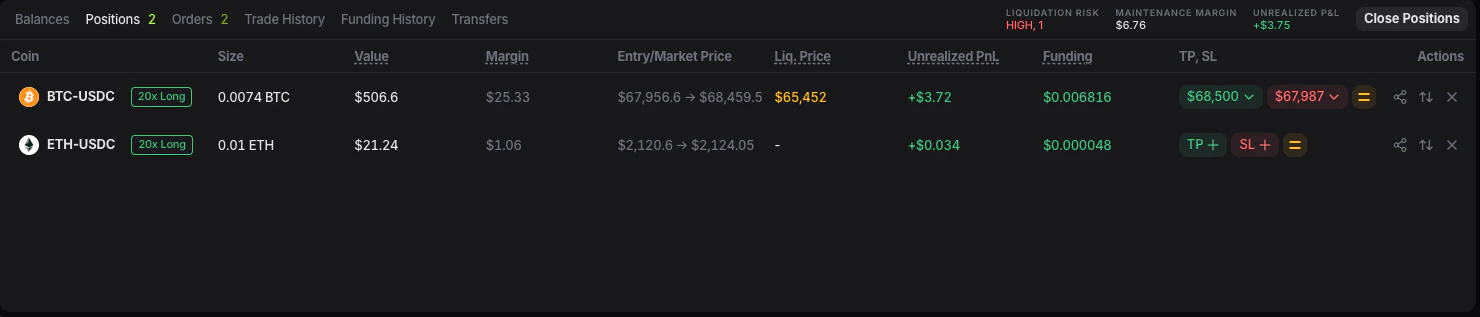 This tab shows your live positions, including key information such as:
* coin
* size
* value
* margin
* entry price and market price
* liquidation price
* unrealized PnL
* [funding](/trading-basics/funding-rate-and-payments)
* TP / SL
If the liquidation number looks closer than expected, review [Liquidation price and risk engine](/trading-basics/liquidation-price-and-risk-engine) before adding size or increasing leverage.
If you placed a market order and it executed successfully, this is the first place to check.
## Where to see your open orders
Go to the lower panel of the trading screen and open the **Orders** tab.
This tab shows your live positions, including key information such as:
* coin
* size
* value
* margin
* entry price and market price
* liquidation price
* unrealized PnL
* [funding](/trading-basics/funding-rate-and-payments)
* TP / SL
If the liquidation number looks closer than expected, review [Liquidation price and risk engine](/trading-basics/liquidation-price-and-risk-engine) before adding size or increasing leverage.
If you placed a market order and it executed successfully, this is the first place to check.
## Where to see your open orders
Go to the lower panel of the trading screen and open the **Orders** tab.
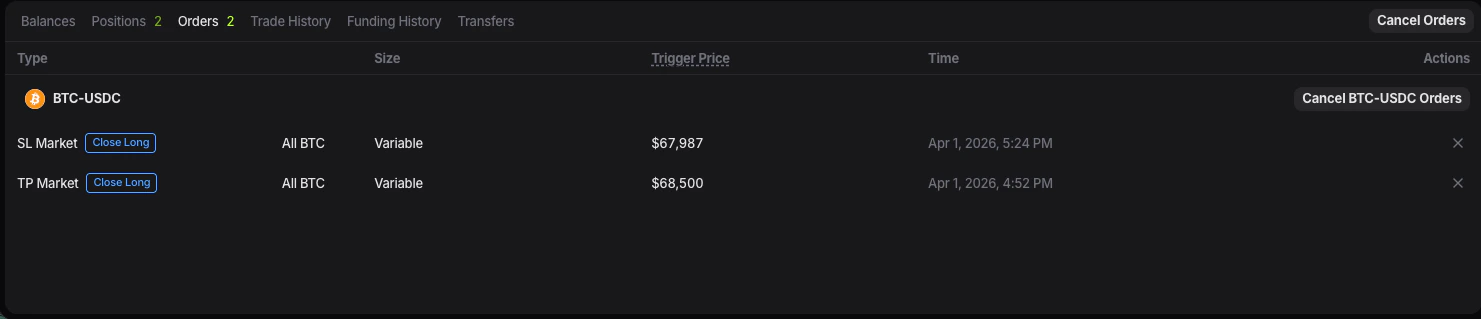 This is where you can see orders that are still active, waiting to be filled, or attached to a position.
This is especially important for:
* limit entries that have not filled yet
* exit orders linked to a position
* orders you may want to edit or cancel later
If you send a limit order and do not see a position yet, check the **Orders** tab first.
## What happens after the order fills
Once the market reaches your order and it is executed:
* the open order disappears from the active orders list
* the trade becomes a position
* the position appears in **Positions**
If the order is only partially filled, you may still see related order activity until the full size is completed or canceled.
## A simple way to think about it
When you click **Long** or **Short**, you are not always opening a position immediately. Sometimes you are sending an instruction to the market first. That instruction lives in the **Orders** tab. Only after execution does it become a live position in the **Positions** tab.
This is where you can see orders that are still active, waiting to be filled, or attached to a position.
This is especially important for:
* limit entries that have not filled yet
* exit orders linked to a position
* orders you may want to edit or cancel later
If you send a limit order and do not see a position yet, check the **Orders** tab first.
## What happens after the order fills
Once the market reaches your order and it is executed:
* the open order disappears from the active orders list
* the trade becomes a position
* the position appears in **Positions**
If the order is only partially filled, you may still see related order activity until the full size is completed or canceled.
## A simple way to think about it
When you click **Long** or **Short**, you are not always opening a position immediately. Sometimes you are sending an instruction to the market first. That instruction lives in the **Orders** tab. Only after execution does it become a live position in the **Positions** tab.