> ## Documentation Index
> Fetch the complete documentation index at: https://docs.entry.fi/llms.txt
> Use this file to discover all available pages before exploring further.
# How to manage TP/SL
**Take Profit** and **Stop Loss** let you define how a position should be closed without having to watch the chart all the time.
* **Take Profit** closes the trade when price reaches your target
* **Stop Loss** closes the trade when price moves against you to a defined level
In Entry Finance, both can be added when opening the trade or updated later from the **Positions** tab.
The main practical idea is:
* use **Stop Loss** to define the maximum damage you are willing to accept
* use **Take Profit** to define how you want to realize gains
* review these exits again after the position size changes
## Add take profit or stop loss when opening a position
The fastest way to define exits is to set them directly in the trading panel before sending the order.
1. Open the trading panel on the right side of the terminal.
 2. Select the market you want to trade.
3. Choose the order type and direction.
4. Enter the position size.
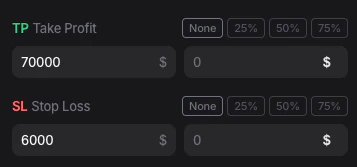
5. In `TP Take Profit`, enter your target price or use one of the preset percentage buttons.
6. In `SL Stop Loss`, enter your stop price or use one of the preset percentage buttons.
7. Review the full order setup.
8. Submit the trade.
If the order is filled, the position opens with those exit instructions already attached.
## Add take profit to an open position
If the position is already open, you can add **Take Profit** from the **Positions** tab.
1. Go to the lower panel of the trading screen.
2. Select the market you want to trade.
3. Choose the order type and direction.
4. Enter the position size.
5. In `TP Take Profit`, enter your target price or use one of the preset percentage buttons.
6. In `SL Stop Loss`, enter your stop price or use one of the preset percentage buttons.
7. Review the full order setup.
8. Submit the trade.
If the order is filled, the position opens with those exit instructions already attached.
## Add take profit to an open position
If the position is already open, you can add **Take Profit** from the **Positions** tab.
1. Go to the lower panel of the trading screen.
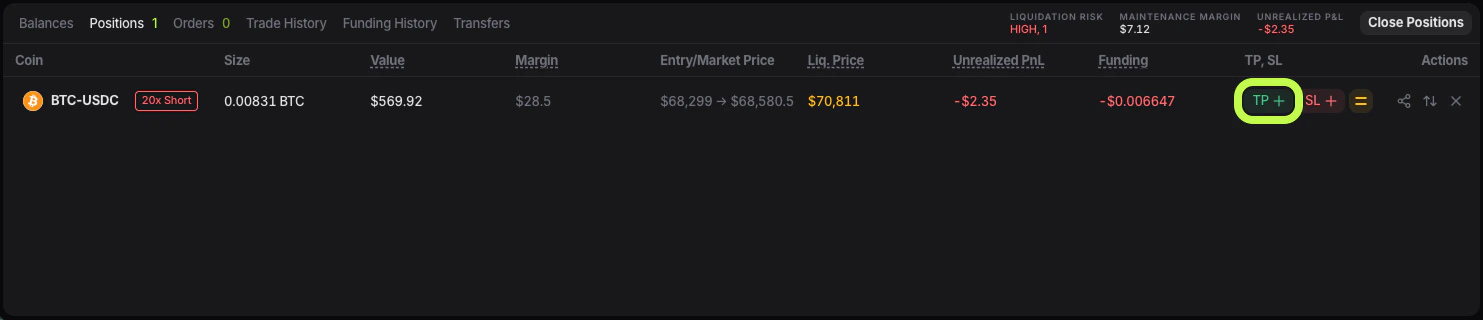 2. Open the **Positions** tab.
3. Find the position you want to manage.
4. In the **TP / SL** area for that row, click the **TP +** control.
5. The `Add TP` window will open.
2. Open the **Positions** tab.
3. Find the position you want to manage.
4. In the **TP / SL** area for that row, click the **TP +** control.
5. The `Add TP` window will open.
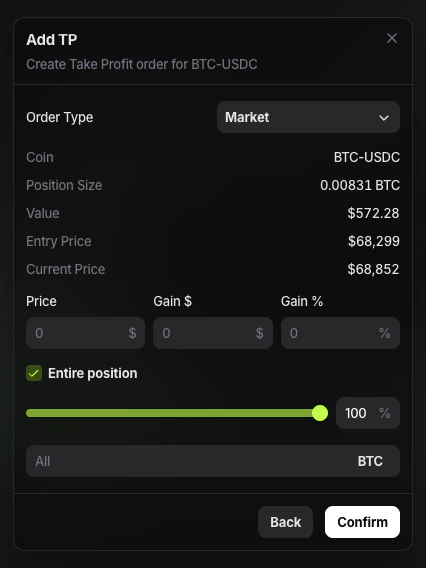 6. Select the order type you want to use.
7. Enter the target price, expected gain, or percentage.
8. Choose whether the order should apply to the entire position or only part of it.
9. Confirm the order.
In the current Entry Finance interface, the **Add TP** window shows:
* **Order Type**: defines how the take profit will execute. **Market** aims to close the position at the best available price once triggered. **Limit** places the exit at a specific limit price.
* **Coin**: the market for the current position, for example **BTC-USDC**.
* **Position size**: the size of the open position that the take profit can act on.
* **Value**: the current notional value of that position.
* **Entry price**: the price at which the position was opened.
* **Current price**: the latest market price at the moment you open the TP window.
* **Price**: the target price where the take profit should trigger or execute.
* **Gain \$**: the estimated profit in dollar terms if the take profit is reached.
* **Gain %**: the estimated profit in percentage terms if the take profit is reached.
* **Entire position**: applies the take profit to the full position size. If you disable it, you can set the exit for only part of the position.
This makes it easier to place the exit using either a direct price or a profit target.
## Multi-target take profit and scaling out
Not every trader exits the full position at one target.
Many traders prefer to scale out:
* close one part of the position at the first target
* leave another part open for a larger move
* keep the stop-loss active on the remaining size
In Entry Finance, the practical foundation for this is the **Entire position** toggle.
If **Entire position** is disabled, you can create a take profit for only part of the current position instead of closing everything at once.
That is useful when you want to:
* secure some profit early
* reduce emotional pressure after the trade starts working
* keep exposure for a second or third target
The key thing to remember is that a partial take profit reduces exposure. It does not automatically define what should happen to the rest of the trade. After a partial exit, check whether the remaining position still has the stop-loss and take-profit structure you want.
## Add stop loss to an open position
If you want to define the maximum loss after the trade is already live, add **Stop Loss** from the same **Positions** row.
1. Open the **Positions** tab.
6. Select the order type you want to use.
7. Enter the target price, expected gain, or percentage.
8. Choose whether the order should apply to the entire position or only part of it.
9. Confirm the order.
In the current Entry Finance interface, the **Add TP** window shows:
* **Order Type**: defines how the take profit will execute. **Market** aims to close the position at the best available price once triggered. **Limit** places the exit at a specific limit price.
* **Coin**: the market for the current position, for example **BTC-USDC**.
* **Position size**: the size of the open position that the take profit can act on.
* **Value**: the current notional value of that position.
* **Entry price**: the price at which the position was opened.
* **Current price**: the latest market price at the moment you open the TP window.
* **Price**: the target price where the take profit should trigger or execute.
* **Gain \$**: the estimated profit in dollar terms if the take profit is reached.
* **Gain %**: the estimated profit in percentage terms if the take profit is reached.
* **Entire position**: applies the take profit to the full position size. If you disable it, you can set the exit for only part of the position.
This makes it easier to place the exit using either a direct price or a profit target.
## Multi-target take profit and scaling out
Not every trader exits the full position at one target.
Many traders prefer to scale out:
* close one part of the position at the first target
* leave another part open for a larger move
* keep the stop-loss active on the remaining size
In Entry Finance, the practical foundation for this is the **Entire position** toggle.
If **Entire position** is disabled, you can create a take profit for only part of the current position instead of closing everything at once.
That is useful when you want to:
* secure some profit early
* reduce emotional pressure after the trade starts working
* keep exposure for a second or third target
The key thing to remember is that a partial take profit reduces exposure. It does not automatically define what should happen to the rest of the trade. After a partial exit, check whether the remaining position still has the stop-loss and take-profit structure you want.
## Add stop loss to an open position
If you want to define the maximum loss after the trade is already live, add **Stop Loss** from the same **Positions** row.
1. Open the **Positions** tab.
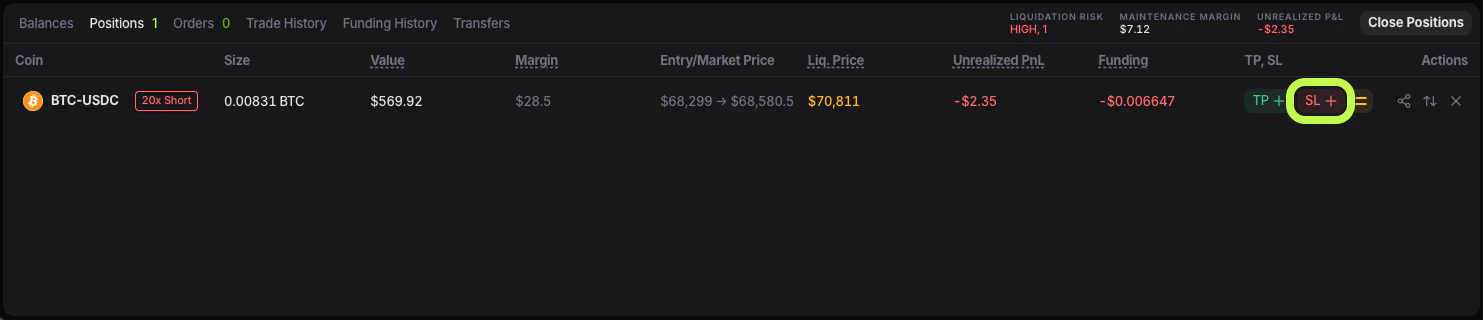 2. Find the position you want to protect.
3. Click the **SL** control in the **TP / SL** area.
4. The `Add SL` window will open.
2. Find the position you want to protect.
3. Click the **SL** control in the **TP / SL** area.
4. The `Add SL` window will open.
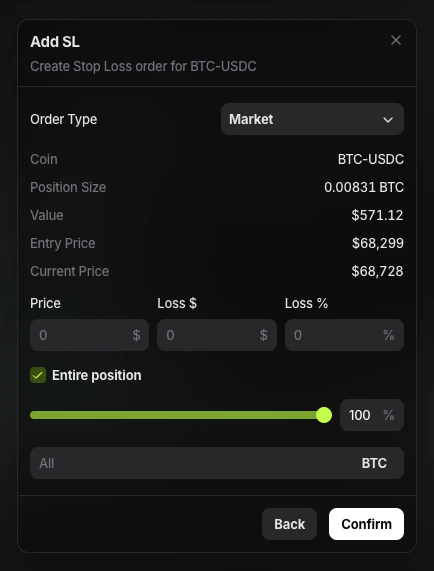 5. Select the order type.
6. Enter the stop price, loss amount, or percentage.
7. Choose whether the stop should apply to the entire position or only part of it.
8. Confirm the order.
## Reduce-only behavior for exits
Exit orders should reduce exposure, not increase it.
That is why traders usually think about **Take Profit**, **Stop Loss**, and manual exit orders together with [Reduce-only orders](/order-types/reduce-only-orders).
The trader-level rule is simple:
* if the order is meant only to close or reduce the position, it should behave like an exit
* it should not accidentally add size or flip the position
This matters even more when:
* you are scaling out in parts
* you already have several active exit instructions
* the remaining position size changes after a partial fill or partial close
If your intention is only to reduce or close, always review the active exit setup after the position size changes.
## What **Entire position** means
Both the **Add TP** and **Add SL** windows include an **Entire position** option.
If it is enabled, the exit order is created for the full size of the position.
If it is disabled, you can define only part of the position to be closed. This is useful when you want to scale out gradually instead of exiting all at once.
This also means the exit structure can become more complex over time. One trade can move from:
* one stop and one full-position take profit
to:
* one stop on the remaining size
* one or more partial take profits already executed or still waiting
## Market or limit for TP and SL
When adding **Take Profit** or **Stop Loss**, the order window lets you choose the order type.
In practice:
* **Market** means the exit will trigger and execute at the best available market price
* **Limit** means the exit uses a specific limit price
**Market** is usually simpler and more reliable for getting out of the trade quickly. **Limit** gives more price control, but execution depends on the market actually trading at that level.
For fast protection, traders often prefer **Market** for stop-loss logic because certainty of exit usually matters more than price precision once the stop is triggered.
## Update or replace TP and SL
If you already have exit orders attached to the position, you can update them from the **Positions** tab.
1. Open **Positions**.
2. Find the position you want to change.
3. Use the **TP / SL** controls for that row.
4. Enter the new values.
5. Confirm the update.
After confirmation, the exit setup for that position is updated. In practical terms, the trader should assume that the old setup may be replaced by the new one rather than stacked automatically in the background.
That is why the safest habit is:
* after any edit, re-check **Positions**
* then re-check **Orders**
* confirm that only the intended exit orders remain active
If you want to move a stop-loss to breakeven without calculating the level manually, Entry Finance also includes a dedicated [Breakeven position](/using-the-terminal/breakeven-position) feature.
## What happens after a partial close
If part of the position is closed, the exit setup should be reviewed again.
That matters because:
* the remaining position size is smaller
* a full-size exit may no longer match the open exposure
* the trade may now need a different stop level or profit-taking plan
After a partial close, check:
1. the new position size in **Positions**
2. whether the active **TP / SL** values still match that remaining size
3. whether old exit orders were reduced, replaced, or should be manually adjusted
Do not assume the original structure is still ideal just because part of it remains active.
## What happens when breakeven is used
Breakeven is a special case of stop management.
When you use [Breakeven position](/using-the-terminal/breakeven-position), Entry Finance replaces the existing stop-loss structure for that position with a new stop at the breakeven level.
So before confirming breakeven, treat it as a stop replacement event, not as an extra stop added on top.
## Where to check your active TP and SL orders
After creating or updating exits, use both of these areas:
* **Positions** to see the current **TP / SL** values linked to the position
* **Orders** to see active exit orders waiting in the market
If you update, partially close, or remove an exit order, check these tabs again to confirm the new setup is active.
5. Select the order type.
6. Enter the stop price, loss amount, or percentage.
7. Choose whether the stop should apply to the entire position or only part of it.
8. Confirm the order.
## Reduce-only behavior for exits
Exit orders should reduce exposure, not increase it.
That is why traders usually think about **Take Profit**, **Stop Loss**, and manual exit orders together with [Reduce-only orders](/order-types/reduce-only-orders).
The trader-level rule is simple:
* if the order is meant only to close or reduce the position, it should behave like an exit
* it should not accidentally add size or flip the position
This matters even more when:
* you are scaling out in parts
* you already have several active exit instructions
* the remaining position size changes after a partial fill or partial close
If your intention is only to reduce or close, always review the active exit setup after the position size changes.
## What **Entire position** means
Both the **Add TP** and **Add SL** windows include an **Entire position** option.
If it is enabled, the exit order is created for the full size of the position.
If it is disabled, you can define only part of the position to be closed. This is useful when you want to scale out gradually instead of exiting all at once.
This also means the exit structure can become more complex over time. One trade can move from:
* one stop and one full-position take profit
to:
* one stop on the remaining size
* one or more partial take profits already executed or still waiting
## Market or limit for TP and SL
When adding **Take Profit** or **Stop Loss**, the order window lets you choose the order type.
In practice:
* **Market** means the exit will trigger and execute at the best available market price
* **Limit** means the exit uses a specific limit price
**Market** is usually simpler and more reliable for getting out of the trade quickly. **Limit** gives more price control, but execution depends on the market actually trading at that level.
For fast protection, traders often prefer **Market** for stop-loss logic because certainty of exit usually matters more than price precision once the stop is triggered.
## Update or replace TP and SL
If you already have exit orders attached to the position, you can update them from the **Positions** tab.
1. Open **Positions**.
2. Find the position you want to change.
3. Use the **TP / SL** controls for that row.
4. Enter the new values.
5. Confirm the update.
After confirmation, the exit setup for that position is updated. In practical terms, the trader should assume that the old setup may be replaced by the new one rather than stacked automatically in the background.
That is why the safest habit is:
* after any edit, re-check **Positions**
* then re-check **Orders**
* confirm that only the intended exit orders remain active
If you want to move a stop-loss to breakeven without calculating the level manually, Entry Finance also includes a dedicated [Breakeven position](/using-the-terminal/breakeven-position) feature.
## What happens after a partial close
If part of the position is closed, the exit setup should be reviewed again.
That matters because:
* the remaining position size is smaller
* a full-size exit may no longer match the open exposure
* the trade may now need a different stop level or profit-taking plan
After a partial close, check:
1. the new position size in **Positions**
2. whether the active **TP / SL** values still match that remaining size
3. whether old exit orders were reduced, replaced, or should be manually adjusted
Do not assume the original structure is still ideal just because part of it remains active.
## What happens when breakeven is used
Breakeven is a special case of stop management.
When you use [Breakeven position](/using-the-terminal/breakeven-position), Entry Finance replaces the existing stop-loss structure for that position with a new stop at the breakeven level.
So before confirming breakeven, treat it as a stop replacement event, not as an extra stop added on top.
## Where to check your active TP and SL orders
After creating or updating exits, use both of these areas:
* **Positions** to see the current **TP / SL** values linked to the position
* **Orders** to see active exit orders waiting in the market
If you update, partially close, or remove an exit order, check these tabs again to confirm the new setup is active.