> ## Documentation Index
> Fetch the complete documentation index at: https://docs.entry.fi/llms.txt
> Use this file to discover all available pages before exploring further.
# Edit or cancel orders/positions
In Entry Finance, editing or canceling an order is different from managing an open position.
An **order** can be canceled before it is filled, and related orders such as **Take Profit** and **Stop Loss** can be updated from the position they belong to. A **position** already has market exposure, so it cannot simply be "canceled". It can only be reduced, closed, or updated with new risk settings such as **Take Profit** and **Stop Loss**. This distinction matters because the **Orders** tab and the **Positions** tab are used for different actions.
## Edit or cancel an open order
Use the **Orders** tab when your order has been submitted but has not fully filled yet.
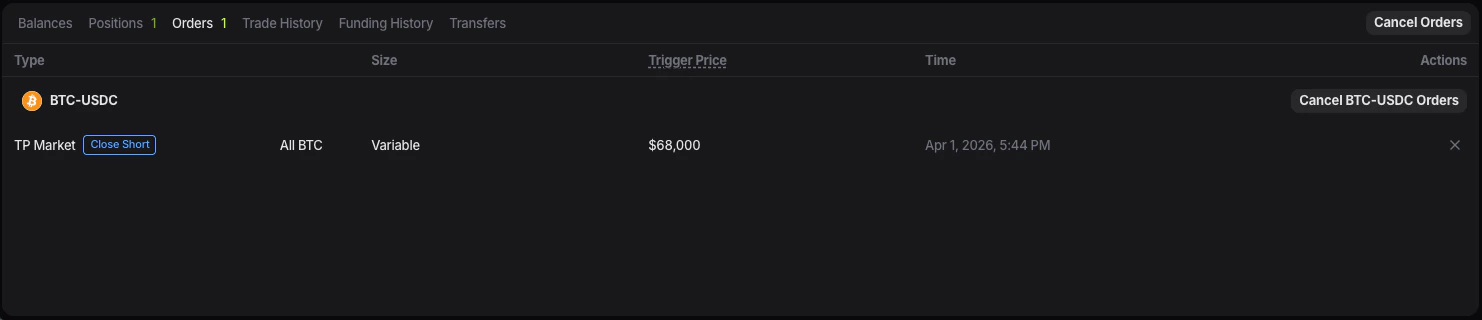 This is where you manage:
* limit orders that are waiting at a chosen price
* exit orders linked to a position
* orders you no longer want to keep active
## How to cancel an order
1. Open the **Orders** tab.
2. Locate the order you want to remove.
3. Click the cancel control next to that order.
4. Confirm the action if the terminal asks for confirmation.
After cancellation, the order will no longer wait in the market. If the order was reserving margin or balance, that amount can become available again after the cancellation is processed.
## How to edit an order
In Entry Finance, related orders such as **Take Profit** and **Stop Loss** are edited from the **Positions** tab.
This is where you manage:
* limit orders that are waiting at a chosen price
* exit orders linked to a position
* orders you no longer want to keep active
## How to cancel an order
1. Open the **Orders** tab.
2. Locate the order you want to remove.
3. Click the cancel control next to that order.
4. Confirm the action if the terminal asks for confirmation.
After cancellation, the order will no longer wait in the market. If the order was reserving margin or balance, that amount can become available again after the cancellation is processed.
## How to edit an order
In Entry Finance, related orders such as **Take Profit** and **Stop Loss** are edited from the **Positions** tab.
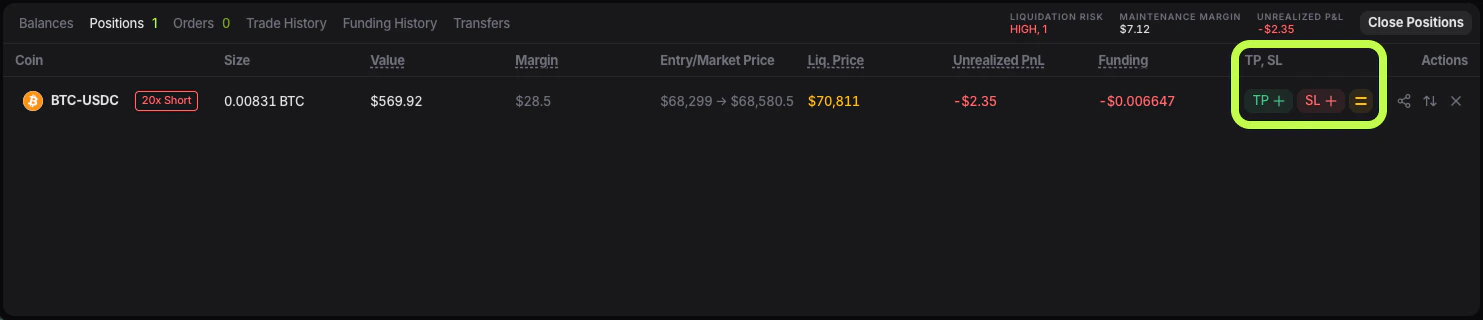 This means:
* use **Orders** to monitor or cancel active orders
* use **Positions** to update the orders attached to a live position
To edit a related order:
1. Open the **Positions** tab.
2. Find the position linked to the order you want to change.
3. Use the **TP / SL** controls in that position row.
4. Enter the new values or choose new percentage presets.
5. Confirm the update.
After confirmation, the updated order settings are applied to that live position.
## Canceling an order does not close a position
This is one of the most common points of confusion. If you cancel an open order, you are canceling only the instruction that has not filled yet. You are not closing a trade that is already live. If the trade has already been executed and is visible in **Positions**, you need to manage the position itself.
## Manage an open position
Once an order is filled, it becomes a position.
From that point, the most common actions are:
* reduce the position
* close the position
* update **Take Profit**
* update **Stop Loss**
These actions are handled from the **Positions** tab or from the position controls visible in the chart and trade area.
## How to find your open positions
1. Go to the lower panel of the trading screen.
2. Open the **Positions** tab.
3. Find the position you want to manage.
This is where you can monitor size, value, margin, entry price, [liquidation price](/trading-basics/liquidation-price-and-risk-engine), unrealized PnL, and attached **TP / SL**.
## How to close a position
If you want to fully exit a live trade:
1. Open the **Positions** tab.
This means:
* use **Orders** to monitor or cancel active orders
* use **Positions** to update the orders attached to a live position
To edit a related order:
1. Open the **Positions** tab.
2. Find the position linked to the order you want to change.
3. Use the **TP / SL** controls in that position row.
4. Enter the new values or choose new percentage presets.
5. Confirm the update.
After confirmation, the updated order settings are applied to that live position.
## Canceling an order does not close a position
This is one of the most common points of confusion. If you cancel an open order, you are canceling only the instruction that has not filled yet. You are not closing a trade that is already live. If the trade has already been executed and is visible in **Positions**, you need to manage the position itself.
## Manage an open position
Once an order is filled, it becomes a position.
From that point, the most common actions are:
* reduce the position
* close the position
* update **Take Profit**
* update **Stop Loss**
These actions are handled from the **Positions** tab or from the position controls visible in the chart and trade area.
## How to find your open positions
1. Go to the lower panel of the trading screen.
2. Open the **Positions** tab.
3. Find the position you want to manage.
This is where you can monitor size, value, margin, entry price, [liquidation price](/trading-basics/liquidation-price-and-risk-engine), unrealized PnL, and attached **TP / SL**.
## How to close a position
If you want to fully exit a live trade:
1. Open the **Positions** tab.
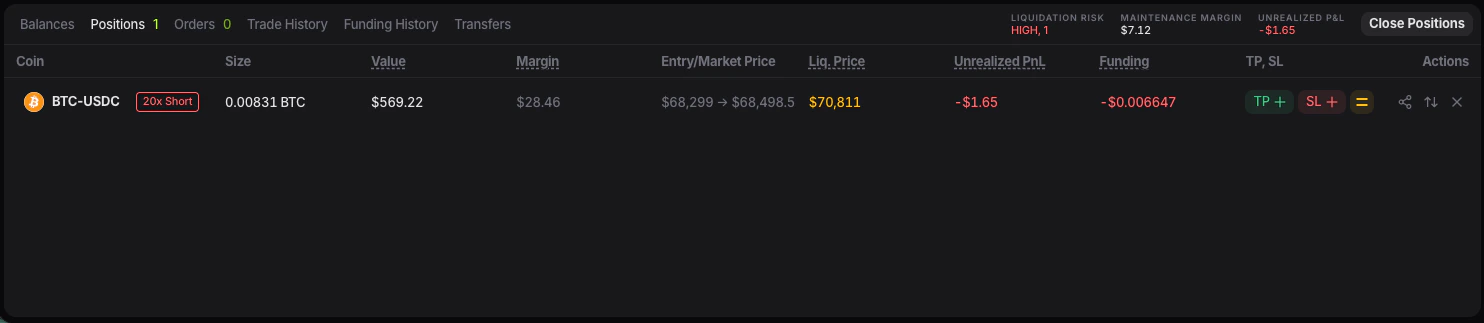 2. Find the position you want to close.
3. Use the close action available for that position.
4. Confirm the close if needed.
After the close is executed, the position will disappear from **Positions**.
If the close is sent as an order rather than filled immediately, you may briefly see related activity in **Orders** until the exit is completed.
## How to reduce a position
If you do not want to fully close the trade, you can reduce it instead.
This lowers your exposure without removing the position completely.
The exact action depends on the controls shown for that position, but the goal is the same: close part of the size while keeping the rest open.
After a reduction:
* the position size becomes smaller
* required margin may decrease
* some balance can become available again
## Where to check whether the action worked
After canceling an order, check the **Orders** tab.
* if the order was canceled, it should no longer appear as active
After closing or updating a position, check the **Positions** tab.
* if the position was closed, it should disappear
* if the position was reduced, the size should be smaller
* if **TP / SL** was updated, the new levels should appear in the position row or on the chart
2. Find the position you want to close.
3. Use the close action available for that position.
4. Confirm the close if needed.
After the close is executed, the position will disappear from **Positions**.
If the close is sent as an order rather than filled immediately, you may briefly see related activity in **Orders** until the exit is completed.
## How to reduce a position
If you do not want to fully close the trade, you can reduce it instead.
This lowers your exposure without removing the position completely.
The exact action depends on the controls shown for that position, but the goal is the same: close part of the size while keeping the rest open.
After a reduction:
* the position size becomes smaller
* required margin may decrease
* some balance can become available again
## Where to check whether the action worked
After canceling an order, check the **Orders** tab.
* if the order was canceled, it should no longer appear as active
After closing or updating a position, check the **Positions** tab.
* if the position was closed, it should disappear
* if the position was reduced, the size should be smaller
* if **TP / SL** was updated, the new levels should appear in the position row or on the chart